
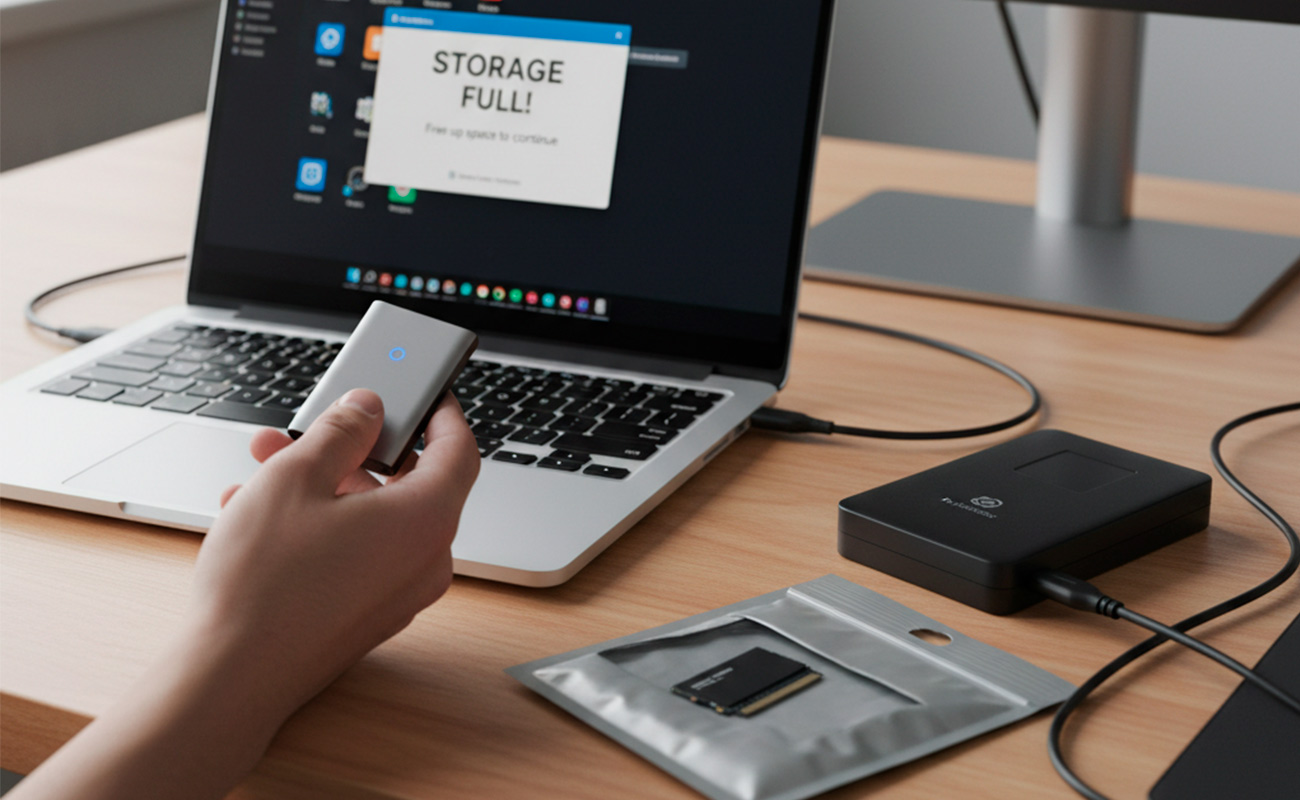
When your computer starts to slow down and the dreaded "Storage Full" message pops up, it’s a clear sign: you need more capacity. The best investment you can make for your PC or laptop is expanding its storage, whether it’s to install new programs, save large media libraries, or simply boost performance.
The key is deciding whether you need an internal solution (permanent and high-performance) or an external one (portable and flexible). Here is your guide to choosing the perfect device.
1. Get to Know the Technologies: Performance vs. Cost
Modern storage is primarily divided into three technologies, and understanding where each connects to your computer is essential:
| Technology | Description | Ideal Use Case |
|---|---|---|
| HDD (Hard Disk Drive) | The most economical option per gigabyte. Ideal for large data volumes that don't require constant access (movie archives, historical backups). | Internal or External. |
| SSD (Solid State Drive) | Much faster than an HDD, using flash memory (no moving parts). Significantly cuts down on program loading times. | Internal or External. Excellent for laptops. |
| NVMe (M.2 NVMe) | The fastest type of SSD available. Connects directly to the motherboard via the PCIe interface, achieving extreme transfer speeds. | Primarily Internal. Can be external in high-performance enclosures. |
2. The Decision: Internal vs. External Storage
Both options are valid, but they offer very different benefits:
Option A: Internal Storage (Maximum Performance and Convenience)
This is the ideal solution if you seek total integration, want to forget about cables, and aim for the fastest possible speed. It's perfect for:
- Desktop PCs: Adding a secondary SSD SATA or NVMe drive for games or heavy editing software.
- Laptop Upgrades: Replacing a slow HDD with an SSD or an NVMe for a radical performance boost.
Option B: External Storage (Portability and Flexibility)
This option is the most versatile and the best for those who need to move files between devices or secure backups away from their computer. It's perfect for:
- Backups: Disconnecting and storing your backup in a safe place.
- Laptop Users: Easily expanding storage space without having to open the device.
- Professionals: Transferring large projects between studios.
3. Recommendations and Suggested Products
Whether you decide to open your PC or simply plug in a cable, here are two high-performance options to upgrade your storage.
For the PC User (Internal Storage)
If you're looking for a permanent upgrade and want your system to fly, opt for NVMe technology.
Suggested Product: Western Digital SN7100 NVMe SSD 2 TB
This drive offers much faster read/write speeds than any traditional SATA SSD. It's ideal for installing your operating system, heavy editing software, or a complete game library. Make sure your motherboard has an available M.2 slot to connect it. Western Digital SN7100 NVMe 2TB
For the Portable User (Fast External Storage)
If you value speed but need to take your files with you, a portable SSD is the best choice.
Suggested Product: Samsung T7 Portable SSD 1 TB
Extremely fast and lightweight. With transfer speeds up to 1000 MB/s via USB-C, this portable SSD is perfect for editing videos and photos directly from the drive without the need to copy large files to your internal drive. Samsung T7 Portable SSD 1TB
For the Archiver or Backup Professional (Massive HDD Storage)
When your primary need is raw capacity for media archives, video projects, or complete system backups where cost per gigabyte matters most, the large-capacity HDD is unbeatable.
Suggested Product: Western Digital (WD) Blue 8TB The WD Blue is the reliable choice for everyday high-capacity storage. It provides immense space (8TB) for massive photo libraries, video footage, or game storage at a great value. It is optimized for standard desktop use and is perfect as a secondary internal drive for bulk data. Western Digital Blue 8TB
4. The Golden Rule: Back Up Your Data
Regardless of whether you choose internal or external storage, data security is paramount. Remember the 3-2-1 Backup Rule:
- 3 copies of your data.
- 2 on different media types (e.g., your internal drive and an external drive).
- 1 copy off-site (in the cloud or the external drive stored in a safe, separate location).
Choose your option, install (or connect) your new drive, and enjoy the peace of mind knowing your files have all the space and security they deserve!